The Lifecycle Behind docker run
Why containers pile up, why data disappears, and which command actually deletes something
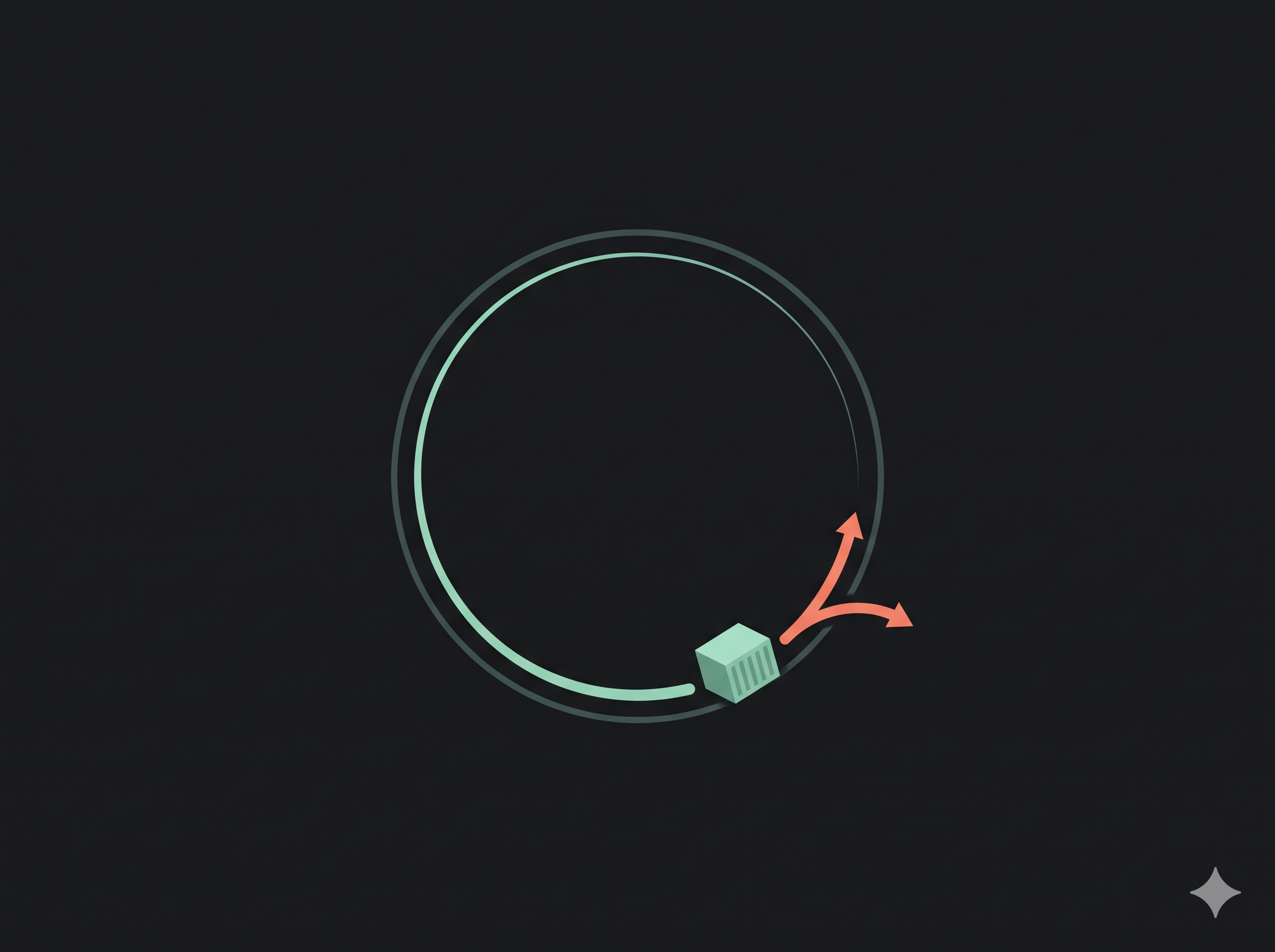
docker run is not "start my container". It creates a new one every time.
That one sentence explains most of the confusion I had with the Docker CLI. Duplicate containers, a shell that vanishes when I exit, data that disappears after docker rm, images that will not delete because a stopped container still references them. None of it is random. It is a lifecycle, and the CLI is just a set of verbs for moving through it.
The problem: images and containers look like the same thing
The command names are close enough to blur together:
docker imagesanddocker psdocker rmianddocker rmdocker runanddocker start
They look like variations on one object. They are not. An image is a read-only template. A container is an instance with a thin writable layer. The image survives the container. The writable layer does not.
Once I separated those two nouns, the flags stopped feeling arbitrary.
The mental model: five states
A container moves through a small set of states:
image -> created -> running -> stopped -> removed
- Image - built or pulled. Read-only.
- Created -
docker createmakes the container but does not start it. - Running -
docker startordocker runstarts it. - Stopped -
docker stopsends SIGTERM, waits, then sends SIGKILL. - Removed -
docker rmdeletes the container and its writable layer.
docker run is pull, create and start in one command. It is a convenience, not a different lifecycle.
That is why a stopped container still appears in docker ps -a and still takes disk space. It is not running, but it still exists.
Walkthrough: watch the state change
Start with the client and daemon:
docker version
docker info
docker version shows the client and server versions. docker info shows the storage driver, cgroups, runtime and other daemon details. If the client works but the server does not, the daemon is the problem, not your command.
Pull an image:
docker pull nginx:1.27-alpine
docker images
Now create a container without starting it:
docker create --name web nginx:1.27-alpine
docker ps -a
The state is Created. Start it:
docker start web
docker ps
The state is Up. Look at the logs:
docker logs web
docker logs -f web
-f follows new output. Ctrl+C stops following; it does not stop the container.
Run a shell inside the running container:
docker exec -it web sh
exec runs a command in an existing container. It needs the container to be running, and the command must exist in the image. Alpine has sh, not bash. Exit the shell and the container keeps running.
Stop it gracefully:
docker stop -t 10 web
-t 10 is a timeout, not a force flag. Docker sends SIGTERM, waits up to ten seconds, then sends SIGKILL. A process that ignores SIGTERM will be killed anyway, just later.
Look at the stopped container:
docker ps -a
docker inspect web
It is still there. inspect returns the low-level JSON: mounts, network settings, state and exit code. That is the honest view of what Docker thinks the container is.
Remove it:
docker rm web
The container and its writable layer are gone. The image is still there.
Now compare with docker run:
docker run -d --name web -p 8080:80 nginx:1.27-alpine
This one command pulls if needed, creates and starts. Run it twice with the same name and the second attempt fails because the name is taken. Run it twice without a name and you get two containers. That is not a bug. run creates.
Use docker start for a container that already exists:
docker start web
Use --rm for throwaway work:
docker run --rm -it ubuntu:24.04 bash
When the shell exits, the container is removed automatically. The image stays.
The cleanup commands are not interchangeable
This is where the commands are easiest to mix up:
| Command | What it removes |
|---|---|
docker stop |
Stops a running container. Keeps it. |
docker rm |
Removes a stopped container. |
docker rm -f |
Kills and removes a running container. |
docker rmi |
Removes an image. |
docker image prune |
Removes unused images. |
docker system prune -a |
Removes stopped containers, unused networks, dangling images and build cache. |
docker rmi -f does not remove containers. It forces image removal and can leave stopped containers pointing at an image that no longer exists. Check docker ps -a before forcing anything.
docker system prune -a is the one to read twice. It is useful on a lab machine and dangerous on a machine with work you forgot about.
The ps flags are Linux, not Docker
The raw notes also include the Linux process commands:
ps a    # processes associated with a terminal, for all users
ps -A   # all processes
ps x    # include processes without a controlling terminal
ps u    # user-oriented format: owner, CPU, memory
These are host/Linux tools. Inside a container, ps only shows processes in that container's PID namespace. PID 1 is the container's entrypoint, not the host init. That is why a container can look almost empty even when the host is busy.
Why containers stop when PID 1 exits
A container lives as long as its main process. That process is PID 1 inside the container's PID namespace.
If PID 1 exits, the container stops. It does not matter whether other processes are still running; Docker treats the container as finished. This is why a shell-only container exits immediately when you run it detached without a terminal, and why a badly written entrypoint can make a service look like it crashed when it actually completed.
It is also why docker run -it ubuntu:24.04 bash stays open, while docker run -d ubuntu:24.04 bash exits. The first has a terminal and an interactive shell. The second starts bash, sees no input, and exits.
The practical rule: the container's main command should stay in the foreground. Do not daemonize the app inside the container and expect Docker to keep the container alive. Let Docker be the supervisor, or use a process manager that stays in the foreground.
docker inspect shows the exit code and the start and finish times. If a container keeps stopping, look at the exit code before you look at the logs. 0 usually means the command finished successfully and there was nothing left to do. A non-zero code means the command failed.
A safer cleanup routine
The cleanup command people reach for first is often docker system prune -a. A safer routine goes in order:
# See everything first
docker ps -a

# Remove one container deliberately
docker rm <container>

# Remove one image deliberately
docker rmi <image>

# Remove only unused images
docker image prune

# Check what is left before the broad command
docker system df
docker system df shows how much space images, containers, volumes and build cache are using. It is a better first step than a prune, because it tells me what is actually taking space.
If I do run docker system prune, I read the prompt. -a removes all unused images, not just dangling ones. On a machine with images I still want, that is a costly convenience.
Gotchas
- A stopped container is not deleted. Use
docker ps -aanddocker rmto clean up. docker runcreates a new container every time. Usedocker startfor an existing one.- Ports are
host:container.-p 8080:80means host 8080 to container 80. docker rmneeds a stopped container unless you pass-f.docker rmi -fdoes not remove containers. It can leave references behind.docker logsshows stdout and stderr only. Files written inside the container are not logs.docker execneeds a running container and a command that exists in the image.-tondocker stopis a timeout, not "force".docker system prune -ais broad. Read the prompt before confirming.- The writable layer belongs to the container. If the data matters, put it on a volume.
Recap
- An image is a template. A container is an instance with a writable layer.
docker runis pull, create and start, not "start the old one".- A stopped container still exists until
docker rm. execenters a running container;runcreates a new one.- Cleanup commands touch different objects. Read them as nouns, not synonyms.
The CLI stopped feeling large when I stopped memorising flags and started tracking state. Most Docker mistakes are just a command aimed at the wrong object in the lifecycle.
Source notes
- Repository notes: https://github.com/rg0901/build-log/tree/main/DevOps-Tool/Docker
- Docker CLI reference: https://docs.docker.com/reference/cli/docker/
docker runreference: https://docs.docker.com/reference/cli/docker/container/run/docker psreference: https://docs.docker.com/reference/cli/docker/container/ls/
About the author
Aspiring DevOps Engineer with hands-on experience in cloud platforms, automation, CI/CD pipelines, containerization, and infrastructure as code. Skilled in AWS, Docker, Kubernetes, Terraform, Ansible, and modern monitoring tools. Experienced with Linux administration, cPanel hosting environments, and deployment workflows. Additionally trained in full-stack development using React and FastAPI.
Comments
Join the discussionNo comments yet. Be the first to comment.


